
How to Choose Icon Size for Screens and Sacred Art
Last Updated: November 24, 2026
Quick Summary
To choose icon size, first decide whether you mean a screen setting or a printed measurement. On phones and computers, icon size is a display setting changed through Display Zoom, grid, or View menu options, while in app design and printed sacred art it is a fixed pixel or physical dimension you plan before ordering.
- On iPhone, icon size is controlled by Display Zoom, which offers only Larger Text or Default.
- On Android, grid size, display size, and launcher icon packs are three separate controls.
- Windows 11 offers the View menu, Ctrl plus scroll, and display scaling for desktop icons.
- Export app icons at native platform sizes; a 1024 px icon shrunk to 32 px looks soft.
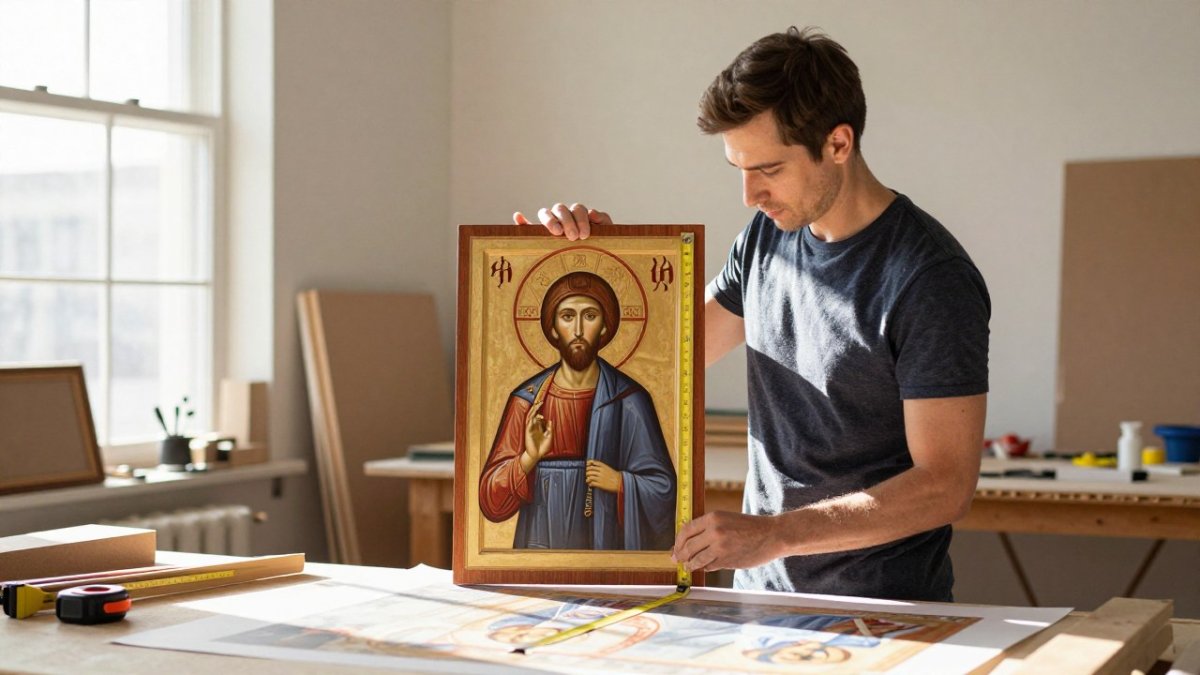
- For printed icons, measure the wall and tape a paper template before ordering.
Table of Contents
- How to Choose Icon Size: Screen Settings or Sacred Art?
- How to Choose Icon Size on iPhone
- How to Choose Icon Size on Android
- How to Reduce Desktop Icon Size in Windows 11
- What Is the Best Size for an Icon in App Design?
- Sizing Printed Icons for Home Altars and Parish Walls
- Troubleshooting When Icon Size Controls Are Missing
- Ordering the Right Icon Size for Your Prayer Space
- Frequently Asked Questions
How to Choose Icon Size: Screen Settings or Sacred Art?
"How to choose icon size" means two different things, and mixing them up wastes time. On a phone or computer, icon size is a display setting you change in seconds. In printed sacred art, icon size is a physical measurement you plan before you order.
This guide covers both. Most people searching this phrase want the phone answer first.
Below, we'll show you how to size icons on iPhone, Android, Windows 11, and macOS, then cover app icon dimensions and printed icon sizing for home altars and parish walls.
How to Choose Icon Size on iPhone
On iPhone, icon size is controlled by Display Zoom, not by a slider. Open Settings, tap Display & Brightness, then tap Display Zoom. Choose "Larger Text" for bigger icons or "Default" for standard size. The device restarts to apply the change.
There is no free-form icon size control on iOS. Apple gives you two states, and that's it. A common mistake is hunting for a slider that doesn't exist.
Home Screen and Display Zoom Options
Display Zoom changes the whole interface, not just the home screen. Text, buttons, and the app grid scale together, keeping the layout readable at any setting.
You can also make text bigger without touching icons. Go to Settings, Accessibility, Display & Text Size, then Larger Text. This changes font size only. The app grid stays put.
Watch out: if you set Display Zoom to Larger Text and later think your icons shrank, nothing broke. You're just comparing two zoom states.
How to Choose Icon Size on Android
On Android, icon size is not one setting. It is the product of three separate controls: the home-screen grid, the display size (density), and the launcher's own icon-shape and label settings. Most guides give you one path and stop.
Start by identifying which control you actually need. If icons look crowded, change the grid. If everything on screen, including text and buttons, looks too small or too large, change display size.
Grid Size by Manufacturer and Launcher
The grid controls how many icons fit per row and column. A denser grid (6x6) makes each icon smaller; a looser grid (4x5) makes each icon larger. The path to that control varies:
- Pixel and stock Android (Android 12 and later): Long-press an empty area of the home screen, tap Wallpaper & style, then Home screen, then App grid. Choose from the offered grid sizes. The exact options depend on the device and the current display size.
- Samsung (One UI 5 and later): Long-press the home screen, tap Settings, then Home screen, then Home screen grid and Apps screen grid. Samsung separates the two grids, so you can run a tight app drawer and a loose home screen, or the reverse.
- Motorola (My UX): Long-press the home screen, tap Home settings, then Layout. Grid options vary by device model.
- OnePlus and Oppo (ColorOS/OxygenOS): Long-press the home screen, tap Settings, then Home screen layout, then Layout. Some builds hide the grid behind a "More" submenu.
- Third-party launchers: Nova Launcher exposes icon width and height as separate sliders under Settings, then Home screen, then Layout, plus an independent label size. Lawnchair and Niagara behave differently again, so check the launcher's own settings rather than the system Settings app.
A common pattern is that the grid option disappears when display size is set to its largest value. If the grid menu looks empty, reduce display size first, then return to the grid setting.
Watch out: on Samsung devices, changing the Apps screen grid does not change the home screen, and vice versa. Users who fix one and see no change on the other are editing the wrong grid.
Display Size, Font Size, and Icon Packs
Display size (sometimes called screen zoom) scales the entire interface. On most Android builds it lives under Settings, then Display, then Display size.
Icon packs are the third lever.
Accessibility settings can override all of this. Settings, then Accessibility, then Visibility enhancements (the label varies by manufacturer) may include a high-contrast or large-icon mode that ignores the grid.
For users who want a specific pixel result, the honest answer is that Android does not expose icon size in pixels. The grid and display size are relative controls.
How to Reduce Desktop Icon Size in Windows 11
Windows 11 gives you three ways to change desktop icon size, and they are not equivalent. The View menu sets a discrete size. Ctrl plus scroll sets a continuous size. Display scaling changes how large everything renders, including icons, and it is the setting most people miss when the first two do not produce the result they expect.
The View Menu, Ctrl Plus Scroll, and Display Scaling
View menu: Right-click an empty spot on the desktop, hover over View, and choose Large icons, Medium icons, or Small icons.
Ctrl plus scroll: Hold Ctrl and scroll the mouse wheel over the desktop. Icons resize smoothly in small increments, finer control than the View menu.
Display scaling: Open Settings, then System, then Display, then Scale. Windows 11 offers 100%, 125%, 150%, 175%, and 200%, plus a custom scaling option.
Watch out: on multi-monitor setups, display scaling is set per monitor.
Icon Spacing, Label Size, and macOS Equivalents
Icon size and icon spacing are separate. Spacing is controlled through the registry or through third-party tools, not through the View menu.
Label size follows the system text size, not the icon size.
On macOS, the equivalent controls live in Finder view options. Open a Finder window, go to View, then Show View Options (or press Command-J).
On both platforms, the on-screen icon size you set here has nothing to do with the pixel dimensions of an app icon file.
What Is the Best Size for an Icon in App Design?
The best icon size in app design depends on the platform, not on taste. Apple's Human Interface Guidelines and Google's Material Design specs each define exact pixel dimensions. Designers should export at those sizes rather than scaling one master file down.
Here is where people confuse two different things. On-screen icon size is a display setting. App icon file dimensions are a design spec. They are not the same measurement, and changing one never changes the other.
Standard Icon Dimensions by Platform
| Platform | Common Icon Size | Format | Notes |
|---|---|---|---|
| iOS app icon | 1024 x 1024 px | PNG | Single master, system scales down |
| Android adaptive icon | 108 x 108 dp | PNG or vector | Safe zone inside the canvas |
| Web favicon | 32 x 32 px | PNG or ICO | Also supply 16 and 48 px |
| Windows app tile | 44 x 44 px | PNG | Scales with display scaling |
| macOS app icon | 1024 x 1024 px | PNG | Multiple sizes in one asset |
Export every size natively. A 1024 px icon shrunk to 32 px looks soft and muddy. Designers who skip this step wonder why their favicon looks blurry.
Accessibility matters here too. The Web Content Accessibility Guidelines ask for touch targets of at least 24 by 24 CSS pixels, and 44 by 44 is the safer target. Small icons aren't just hard to see. They're hard to tap.
For print-resolution guidance on sacred images, our high resolution Orthodox icon prints buyer's guide walks through resolution checks and panel options.
Sizing Printed Icons for Home Altars and Parish Walls
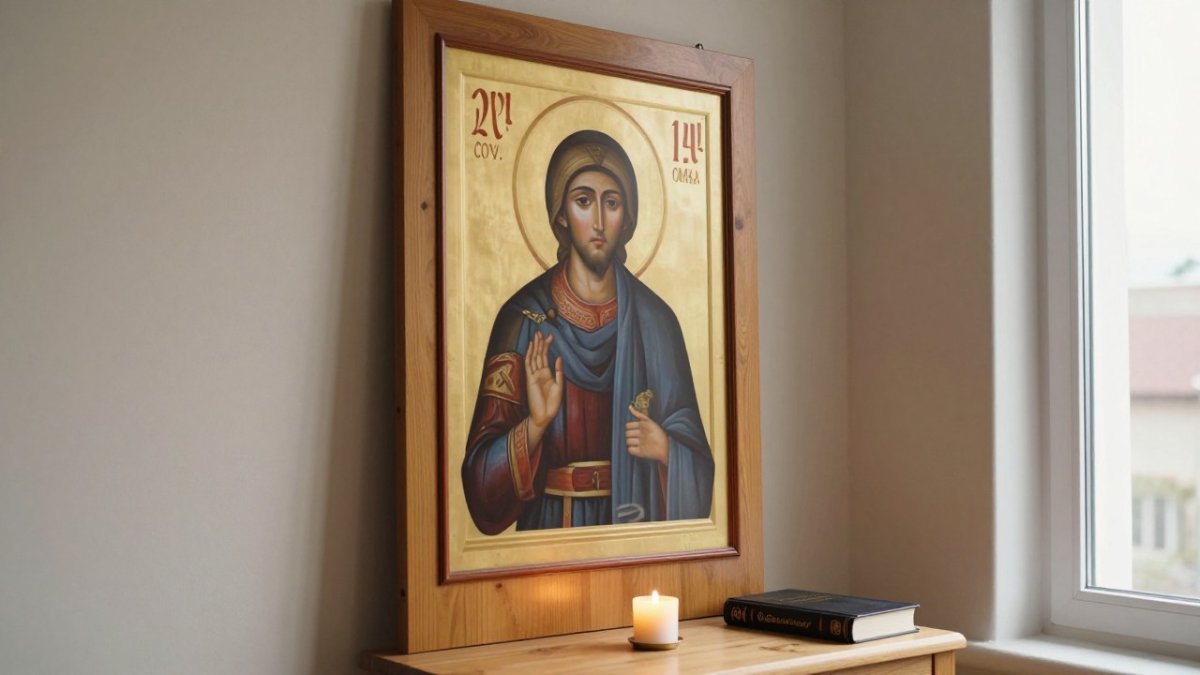
Printed icon size is a measurement, not a setting. Match the icon to the wall and the viewing distance, not to a screen. Choose a size that suits your altar or wall and the viewing distance.
Three practical rules guide our sizing advice:
- Measure the wall first. Tape a paper template at the planned height before ordering.
- Leave breathing room. An icon needs clear space around it to read as a focal point.
- Think about distance. A icon viewed from across a nave must be far larger than one viewed from arm's length.
Resolution is the other half of the decision. For the full picture, see how custom Orthodox icon printing services work.
For parish spaces that see candle smoke and daily veneration, durable Orthodox icons built for parish use compares materials and finishes worth knowing before you buy.
Troubleshooting When Icon Size Controls Are Missing
Missing icon size controls almost always trace to one of four causes. Check these before assuming your device is broken.
- You're in the wrong menu. Icon size lives under Display or Home Screen, not under Wallpaper or Themes.
- Your launcher overrides it. A third-party launcher replaces the stock grid settings entirely.
- Display Zoom is locked. On iPhone, some accessibility profiles hide the option.
- A work profile restricts it. Managed devices often block display changes.
- You updated the OS. Menu names shift between versions, so search Settings for "display size."
If the slider exists but does nothing, restart the device. Display changes sometimes need a fresh start to apply.
Ordering the Right Icon Size for Your Prayer Space
Ordering the right size starts with the wall. Measure the space, tape a paper template, and live with it for a day before you order.
Two details make sizing easier. First, our high-resolution images come from onsite photography at churches and monasteries. Second, our panels arrive ready to hang.
Before you mount anything, read our guide to Orthodox icon mounting techniques for home and parish. And if you're still deciding which images belong in the space, choosing icons for your prayer corner covers selection and arrangement.
Choosing an icon size is really a question of purpose. A phone setting takes ten seconds.
Get started with Theophany Works and bring archival-quality, handcrafted iconography into your home altar or parish.
Frequently Asked Questions
How do I change the size of my icons on a phone?
On iPhone, open Settings, tap Display & Brightness, then choose a text size or Display Zoom option that enlarges the home screen. On Android, long-press an empty spot on the home screen, open Home settings or Wallpaper & style, and adjust the app grid or icon size slider. Both paths change how large icons appear without altering the app itself. If the control is missing, your launcher may not support it, so check your device model and OS version before assuming something is broken.
What is the best size for an icon file?
It depends on where the icon will be used. iOS app icons are typically supplied at 1024 by 1024 pixels and scaled down by the system. Android uses adaptive icons with a 108 by 108 dp canvas and a 72 dp safe zone. Desktop shortcuts on Windows look sharpest at 256 by 256 pixels. Always export as PNG with a transparent background where the platform allows it, and keep one master file at the largest size so smaller versions stay crisp.
Why can't I find an icon size setting on my device?
Some launchers and older OS versions do not expose a dedicated icon size slider. On Android, the setting often lives inside the launcher's own preferences rather than the main Settings app. On iPhone, icon size is tied to Display Zoom and text size rather than a standalone control. If you have checked both the main settings and the launcher options and still see nothing, the feature is not available on that build, and a third-party launcher is the usual workaround.
How do I pick the right icon size for a home altar or parish wall?
Measure the wall space first, then match the icon to the viewing distance. A icon on a small shelf altar is usually seen from two to three feet away, while a parish wall icon is viewed from across the room. As a rule, the icon should fill roughly half to two-thirds of the available width so it reads as a focal point without crowding adjacent items.

Explore Popular Articles
Agiografia Icons vs Christianity Art: What's the Difference?
Last Updated: November 26, 2026 Quick Summary Agiografia icons are liturgical objects made to be ve...
How to Choose Icon Size for Screens and Sacred Art
Last Updated: November 24, 2026 Quick Summary To choose icon size, first decide whether you mean a...
7 Handcrafted Maple Panel Religious Art Pieces Worth Considering
Last Updated: November 22, 2026 Quick Summary Handcrafted maple panel religious art pairs a sacred...
How to Choose Between Modern and Traditional Icon Printing
Last Updated: November 17, 2026 Quick Summary Choose modern icon printing when you need faithful, d...